
 By
By 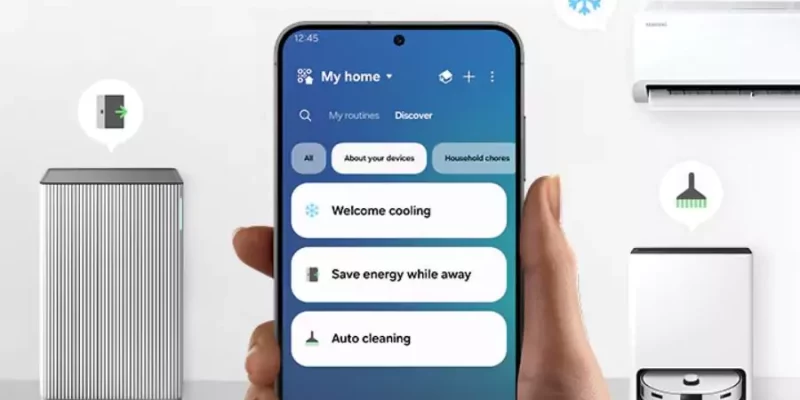
Welcome to the future of smart living! If you’re ready to streamline your daily tasks and build a smarter, more connected home, Samsung SmartThings is the ideal platform to get started with. Whether you’re new to smart home technology or already have a few devices in place, this easy guide will walk you through the entire setup process. By the end, you’ll know how to connect, control, and customize your Samsung devices and compatible products to create a home that works for you.
Easy Steps to Set Up Samsung SmartThings
Easy Steps to Set Up Samsung SmartThings | Atnook
1. Download and Install the SmartThings App
Start by downloading the Samsung SmartThings app from the Google Play Store (for Android) or Apple App Store (for iOS).
Once installed, sign in with your Samsung account, or create one if you don’t have it yet. This account becomes the control center for all your connected devices.
Having the app on your phone is the first essential step toward building your smart home.
2. Connect Your SmartThings Hub (If Needed)
If you’re using a separate SmartThings Hub (such as the SmartThings Hub v3), plug it into a power outlet and connect it to your router via Ethernet.
Follow the in-app instructions to add the hub to your account.
Note: Many newer Samsung products like Smart TVs or Family Hub refrigerators can also function as a hub, so you may not need a separate one.
Using your Samsung TV as a hub makes setup even simpler!
3. Add Your Samsung Devices
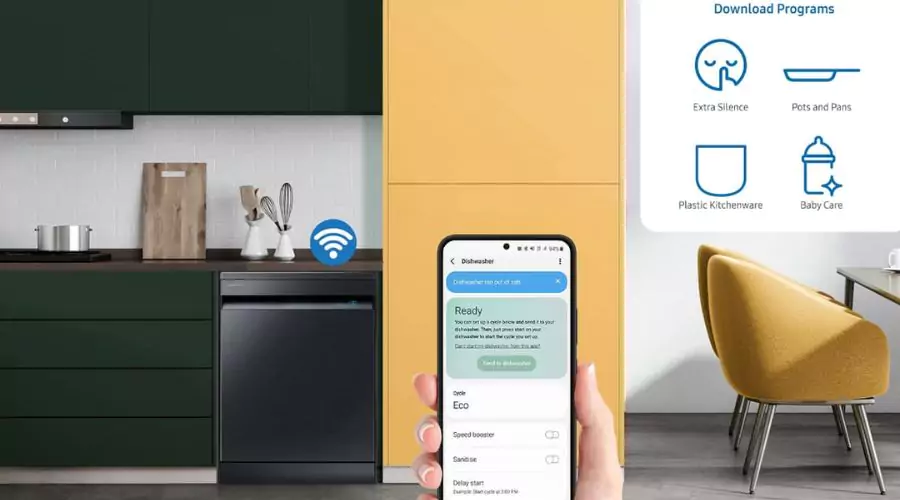
Next, it’s time to connect your Samsung appliances to the SmartThings app. This could include your Samsung Smart TV, Galaxy smartphone, washing machine, air conditioner, and more.
The app will automatically detect compatible nearby devices. Just follow the prompts to link them.
For instance, connecting your Galaxy S23 to your Samsung Smart TV allows seamless control right from your phone.
This step is essential for making the most of your SmartThings setup.
4. Add Other Smart Home Devices
SmartThings supports a wide range of third-party smart devices beyond Samsung.
From Philips Hue lights to Ring doorbells, Yale smart locks, and more, you can easily build a fully connected ecosystem.
Look for products with the “Works with SmartThings” badge to ensure smooth compatibility.
Browse the app to explore supported devices and expand your smart home easily.
5. Create Scenes and Automations
One of the standout features of SmartThings is its ability to create scenes and automations.
-
Scenes let you activate multiple devices with a single tap — like a “Movie Night” scene that dims the lights and turns on the TV.
-
Automations trigger actions based on certain conditions — like turning on the porch light when the front door opens.
These features bring your smart home to life with convenience and customization.
6. Explore SmartThings Routines
Routines go a step further by offering advanced automation options.
You can trigger routines based on time, location, or behavior patterns.
Imagine a “Good Morning” routine that turns on your lights, starts your coffee maker, and plays music — all automatically.
It’s all about making your home respond to your lifestyle.
7. Customize Your SmartThings Dashboard
Finally, make your smart home experience more intuitive by personalizing the SmartThings dashboard.
Group devices by room, arrange scenes for easy access, and design a layout that fits your routine.
A custom dashboard helps you stay organized and in control — your smart home, your way.
Final Thoughts
Samsung SmartThings is a powerful way to bring smart home convenience to your fingertips. By following these simple steps, you can create a connected, automated environment that fits your lifestyle perfectly — whether you’re watching a movie, heading to work, or just waking up.





Comments