
 By
By 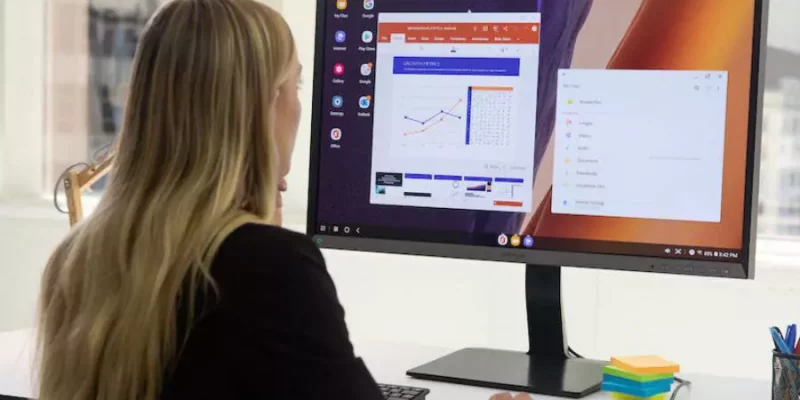
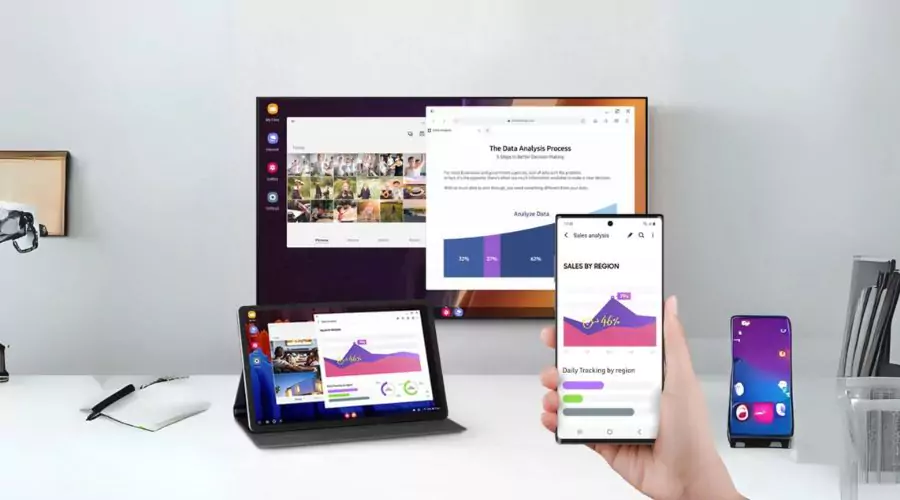
Ready to unlock the full power of your Samsung Galaxy device? With Samsung DeX, you can turn your smartphone or tablet into a desktop-like workspace — perfect for getting more done, whether it’s work, creativity, or entertainment. This step-by-step guide will walk you through how to set up Samsung DeX easily and effectively.
Quick Steps to Set Up Samsung DeX
Quick Steps to Set Up Samsung DeX | Atnook
-
Confirm Device Compatibility
-
Choose How You’ll Connect
-
Plug In Your Peripherals
-
Activate DeX Mode
-
Personalize Your DeX Workspace
-
Maximize App Functionality
-
Try DeX Labs (Optional)
Step 1: Confirm DeX Compatibility
Start by making sure your Samsung device supports DeX. Most modern Galaxy devices do — including:
-
Galaxy S8 and newer
-
Galaxy Note 8 and newer
-
Galaxy Tab S4 and newer
To check, visit Samsung’s website or look under your device settings. It’s also essential to update your Android and One UI software for the best performance. Keep in mind: the smoother your experience depends on how powerful your device’s processor and RAM are.
Step 2: Choose a Connection Method
You can connect DeX in three main ways:
-
DeX Station or Pad (older devices): Offers HDMI, USB, and Ethernet ports.
-
USB-C to HDMI Cable: Simple and portable — just plug your phone directly into a monitor.
-
Wireless DeX: Available on newer models, lets you connect to a smart TV or monitor without cables.
For most users, a USB-C to HDMI cable provides the perfect balance between portability and ease. If you want the flexibility to move around, Wireless DeX is a great option.
Step 3: Connect Your Peripherals
To get that full desktop feel, connect your keyboard, mouse, and monitor:
-
With a DeX Station: Plug everything into the dock.
-
With a USB-C cable or wireless mode: Pair a Bluetooth keyboard and mouse with your device.
Using something like the Galaxy Tab S8 Ultra? Pairing it with Bluetooth accessories creates a powerful, laptop-like setup.
Step 4: Launch Samsung DeX Mode
Once everything is connected:
-
Your phone will prompt you to launch DeX.
-
Tap “Start Samsung DeX“ to enter desktop mode.
-
If using wireless mode, choose your display from the available options.
Explore useful shortcuts (like Alt+Tab for switching apps and Ctrl+C/Ctrl+V for copy-paste). For an even better experience, consider peripherals designed specifically for DeX, which often come with dedicated function keys.
Step 5: Customize Your Workspace
Make your DeX desktop your own:
-
Change the wallpaper and screen resolution.
-
Add your favorite app shortcuts.
-
Resize and move windows for better multitasking.
The Galaxy S23 Ultra, when connected to an external monitor, delivers a smooth and responsive DeX interface, perfect for serious productivity.
Step 6: Optimize How You Use Apps
Most Android apps work great in DeX mode:
-
Use keyboard shortcuts and mouse gestures for efficiency.
-
Take advantage of multitasking — run multiple apps side by side.
-
Samsung Notes, for example, is perfect for writing or sketching in DeX mode.
Need to transfer or manage files? Plug in a USB or external drive. Many apps also let you customize shortcuts to match your workflow.
Step 7: Explore DeX Labs (Optional)
Want to push DeX even further? Head to DeX Labs:
-
Enable experimental features like “Force apps to resize“ — great for apps that aren’t fully optimized.
-
Keep in mind these features might not work perfectly with every app.
DeX Labs is for advanced users looking to tweak and enhance their experience even more.
With Samsung DeX, your phone or tablet becomes more than just a mobile device — it becomes your all-in-one workstation. Follow these steps to streamline your setup and start working smarter today.





Comments